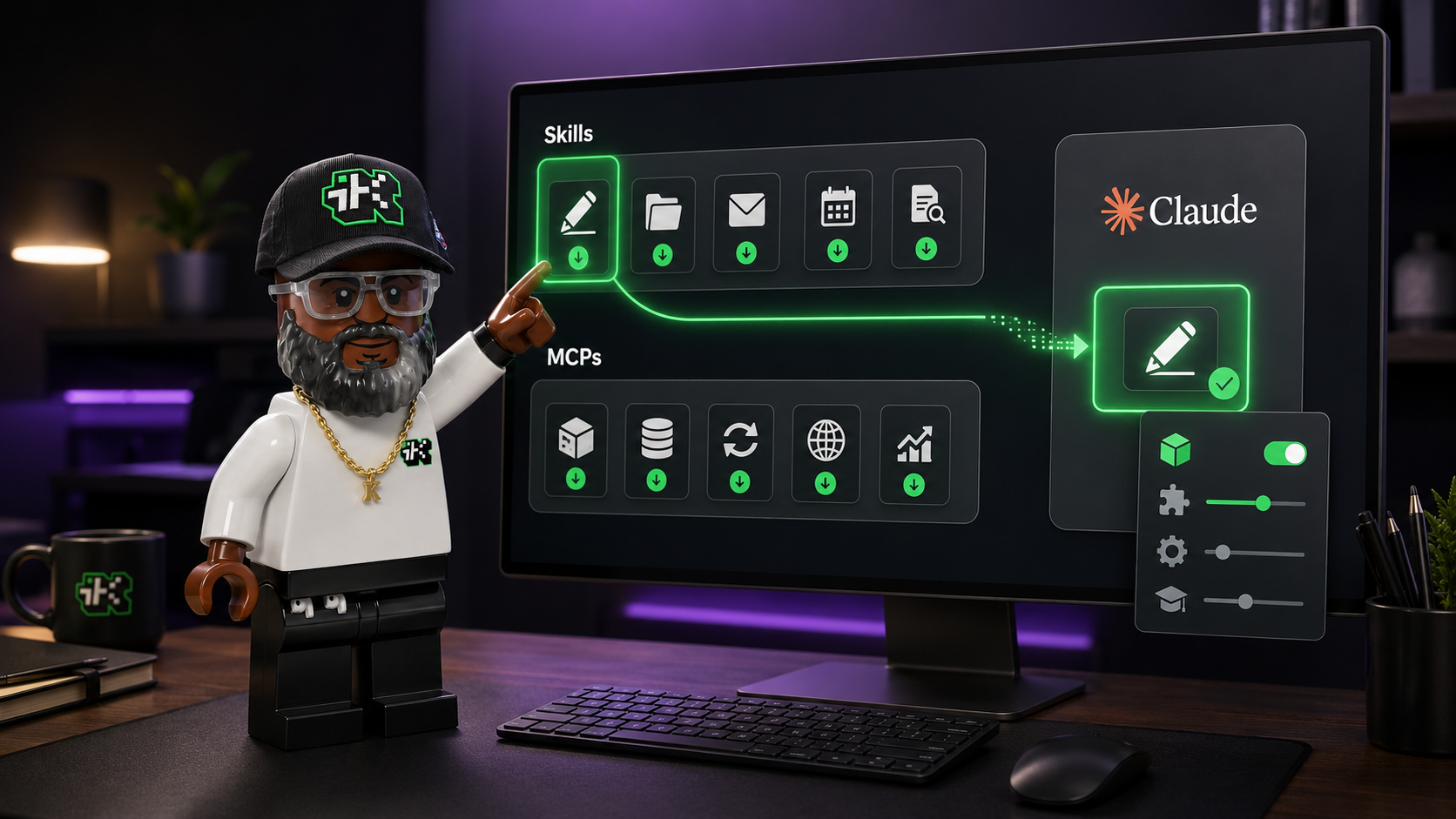

An MCP, short for Model Context Protocol, is a shared standard that lets an AI assistant like Claude connect to your other apps and data. Instead of copying text out of Google Drive, Slack, or your calendar and pasting it into a chat, you connect the app once and Claude can read from it or take actions in it directly.
If you already use Claude or ChatGPT most days and you've seen the word "MCP" or "connector" without a clear explanation, this is the plain-English version: what an MCP is, where it saves you real time, and how to turn one on yourself without writing any code.
The quick version
An MCP is a common way for AI tools and outside apps to talk to each other. One app builds an MCP connection once, and any AI assistant that speaks the same standard can use it. For you, that means connecting Claude to a tool like Gmail or Notion in a few clicks, then asking questions about what's in there instead of pasting it in by hand.
Where the name comes from
Anthropic, the company behind Claude, introduced the Model Context Protocol in November 2024 and released it as an open standard. Open means anyone can build with it, not just Anthropic. Since then, other AI tools and hundreds of app makers have adopted it, which is why you'll see MCP mentioned well beyond Claude.
The common description for MCP is a "USB-C port for AI." A USB-C port is one shape that fits many devices, so you carry one cable instead of a drawer full of them. MCP does the same job for AI: one standard connection that many apps can plug into, instead of a different custom setup for every pairing.
The problem it fixes
Before MCP, connecting an AI tool to an app meant someone had to build that exact pairing by hand: Claude to Slack, Claude to Google Drive, ChatGPT to Slack, and on and on. Every new combination was its own project. Anthropic called this the M times N problem, where a handful of AI tools and a handful of apps still add up to a long list of one-off connections to build and maintain.
MCP replaces those one-off connections with a single standard. An app builds one MCP server, and any assistant that speaks MCP can use it. For a non-developer, the everyday version of this pain is smaller but familiar: copying the same report out of one tool and into a chat every week, or re-explaining where your files live every time you start over.
What an MCP looks like inside Claude
In the Claude apps, MCPs show up under a friendlier name: connectors. A connector is an MCP connection Anthropic has packaged so you can add it without touching code. When you connect Linear to create issues, connect Slack to send messages, or connect Google Drive to search your files, you're using MCP underneath, according to Anthropic's connectors guide.
One rule matters here: a connector inherits your permissions. If you can't open a specific file, channel, or record in the original app, Claude can't reach it through the connector either. It sees what you can see, nothing more.
Real ways a non-developer would use one
The point of a connector is to skip the copy-paste step and let Claude work with your real files and messages. A few examples that need no code:
- Google Drive: ask Claude to find and summarize a document without hunting for it or pasting it in.
- Gmail or Microsoft 365: have Claude read a long email thread and pull out what you owe people.
- Slack: catch up on a busy channel, or draft and send a message.
- Notion or Asana: turn a messy set of notes into tasks, or check what's due this week.
- Zapier: one connector that reaches thousands of other apps, useful when the tool you want isn't in the directory yet.
Some connectors also show live interfaces right in the chat, like a task board or a dashboard. Anthropic marks those with an Interactive badge in the directory.
How to add one
Adding a connector from Anthropic's directory takes a minute and no technical setup. Here's the path in Claude or Claude Desktop:
- Open a chat and click the "+" button in the lower-left corner, or go to Settings, then Connectors.
- Click the "+" next to Connectors, then choose Browse connectors to open the directory.
- Find the app you want by category or search, and click it to see what it can read and do.
- Click Connect or Install, then sign in to that app and approve the access it asks for.
- Back in a chat, open the "+" menu, hover Connectors, and toggle the app on for that conversation.
Once it's on, you don't have to name the tool every time. Ask for the thing you want, like "summarize my unread Slack in the design channel," and Claude reaches for the connector when it fits. If you have a lot of connectors active, Anthropic suggests switching Tool access to On demand so your chats stay uncluttered.
What to watch out for
A connector can read your data and, in many cases, change it, so treat access like you would any app login. Three things worth doing:
- Connect only tools you trust and use. Read what access a connector asks for during setup, and disconnect ones you've stopped using.
- Know read versus write. Reading your files is lower risk than sending messages or editing records. On Team and Enterprise plans, an admin can allow reading while blocking write actions.
- Be extra careful with custom connectors. You can add any MCP server by URL, but a custom connector points at a service Anthropic hasn't verified. Only add ones from a source you trust, and read the permissions before you approve.
Should you bother?
If you keep pasting the same source material into Claude, or you start every session re-explaining where your work lives, a connector is worth the two minutes to set up. Start with one app you touch daily, like Google Drive or your email, and see whether it removes a step you were doing by hand.
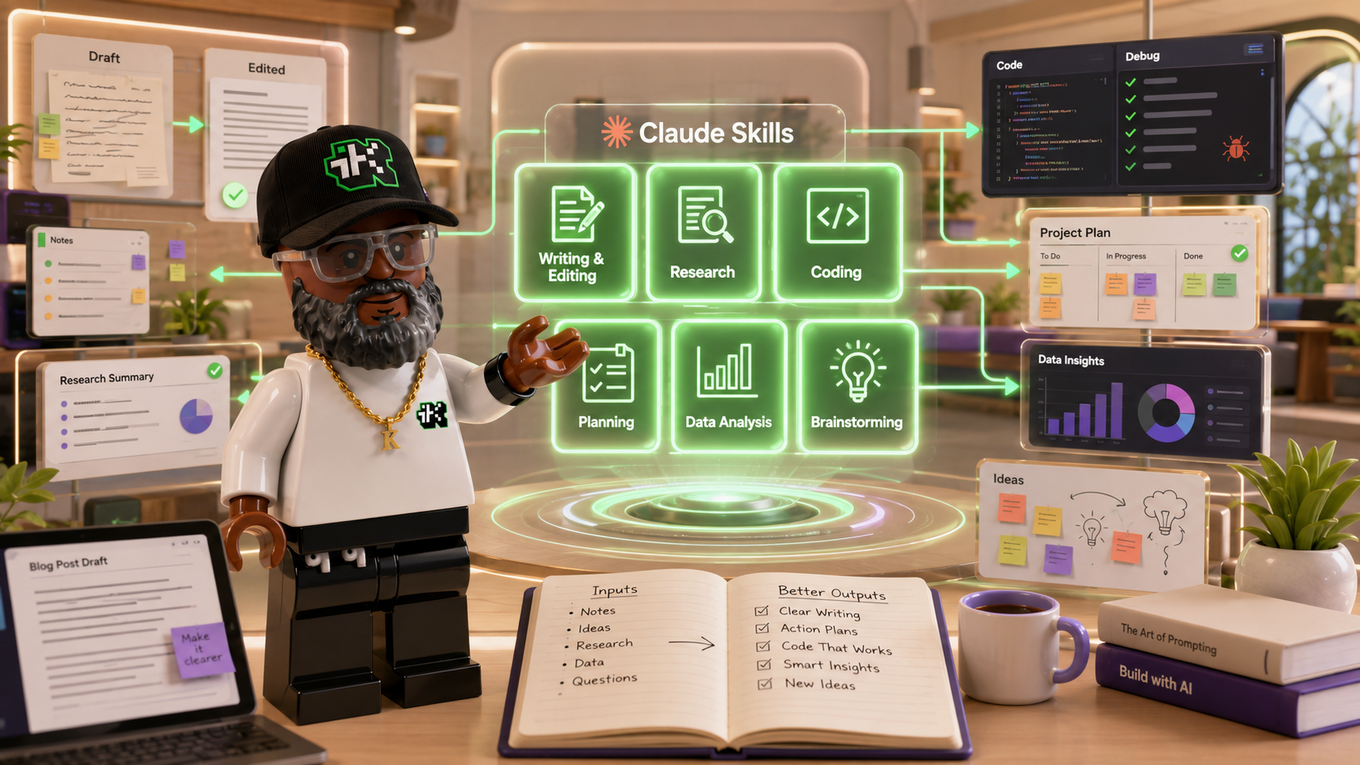
Connectors pair naturally with two other Claude features worth knowing. Claude Skills save instructions for how you want a task done, while a connector supplies the live data to do it with. And once you want to browse what other people have already built and shared, where to find ready-made Claude skills and MCPs covers the directories to look through. If you're still getting set up in Claude Cowork, the beginner's guide to Claude Cowork is the place to start.
Sources:
anthropic.com, "Introducing the Model Context Protocol" ·
support.claude.com, "Use connectors to extend Claude's capabilities"