
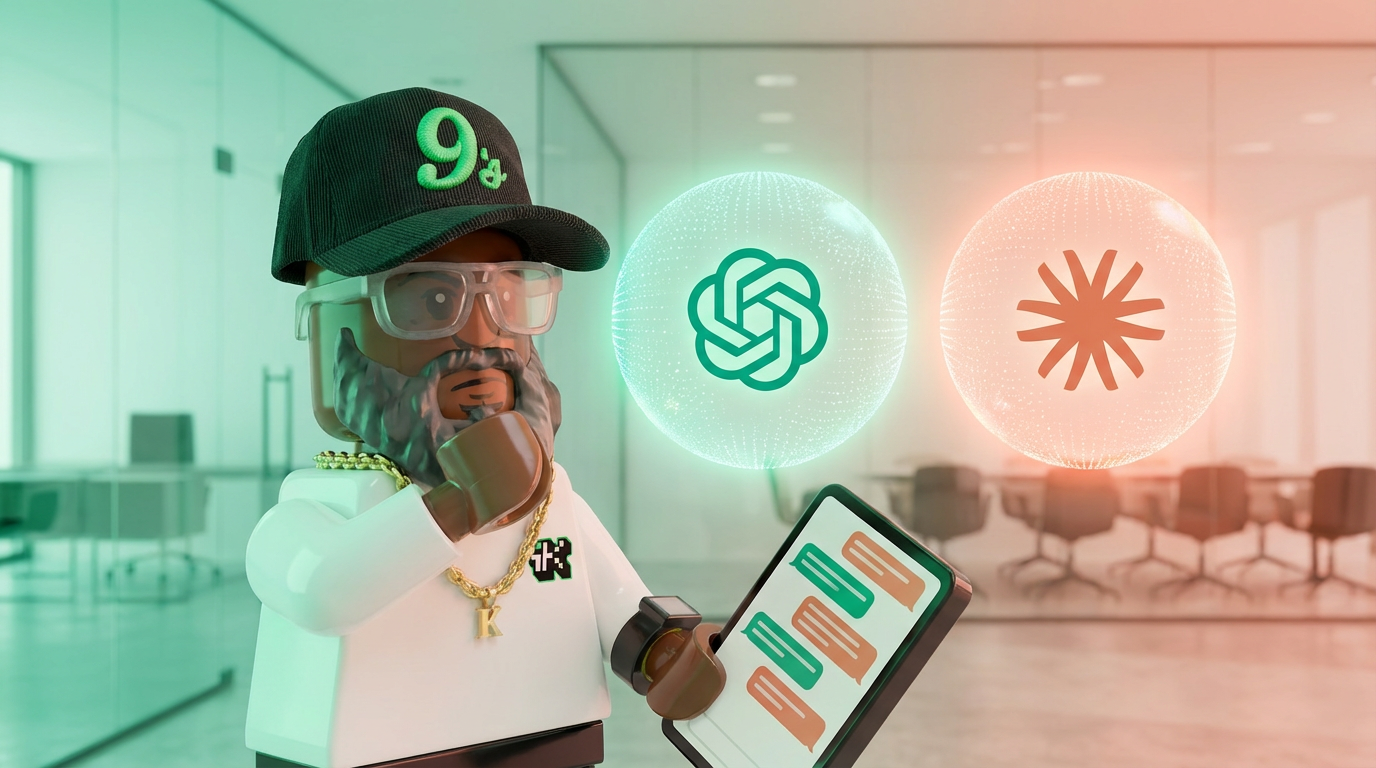
If you've been anywhere near social media the last few weeks, you already know people are making the move from ChatGPT over to Claude. The reasons vary — performance, privacy, just wanting a change of scenery. But the number one thing holding people back is the same question every time: what happens to everything I built over there?
I've been on ChatGPT since November 2022 — back when it hit the streets before most people even knew what a chatbot was. In that time I've built out projects, stacked custom instructions, and thought-streamed enough to give it a very solid foundation of who I am and how I work. Leaving all of that behind would be straight up insanity. So when I started moving more of my work over to Claude, I needed to know I could bring my context with me.
Your writing style. Your projects. The way it learned to talk to you. The workflows you spent months refining. Starting from zero sounds exhausting because it is.
Here's some news you can use: you don't have to.
Turns out Claude built the bridge. You just gotta walk across it.
Here's how to do it, three ways deep depending on how much you need to carry over.
The Memory Import Method
This is where most people should start. It's fast, it's free, and it handles the most important piece: the context Claude needs to know you.
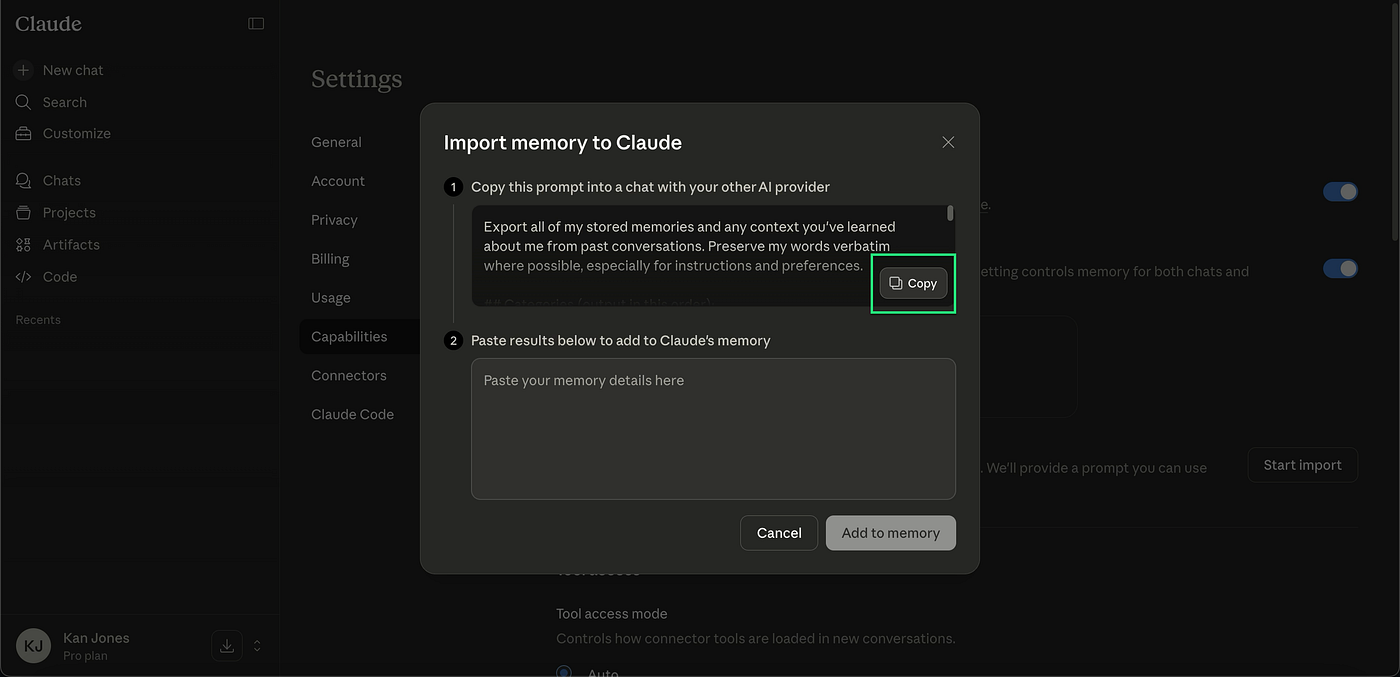
Go to Claude.ai, click your profile, hit Settings, scroll to Capabilities, find the Memory section, and click "Start Import." Anthropic gives you a prompt right there on that screen — copy it.
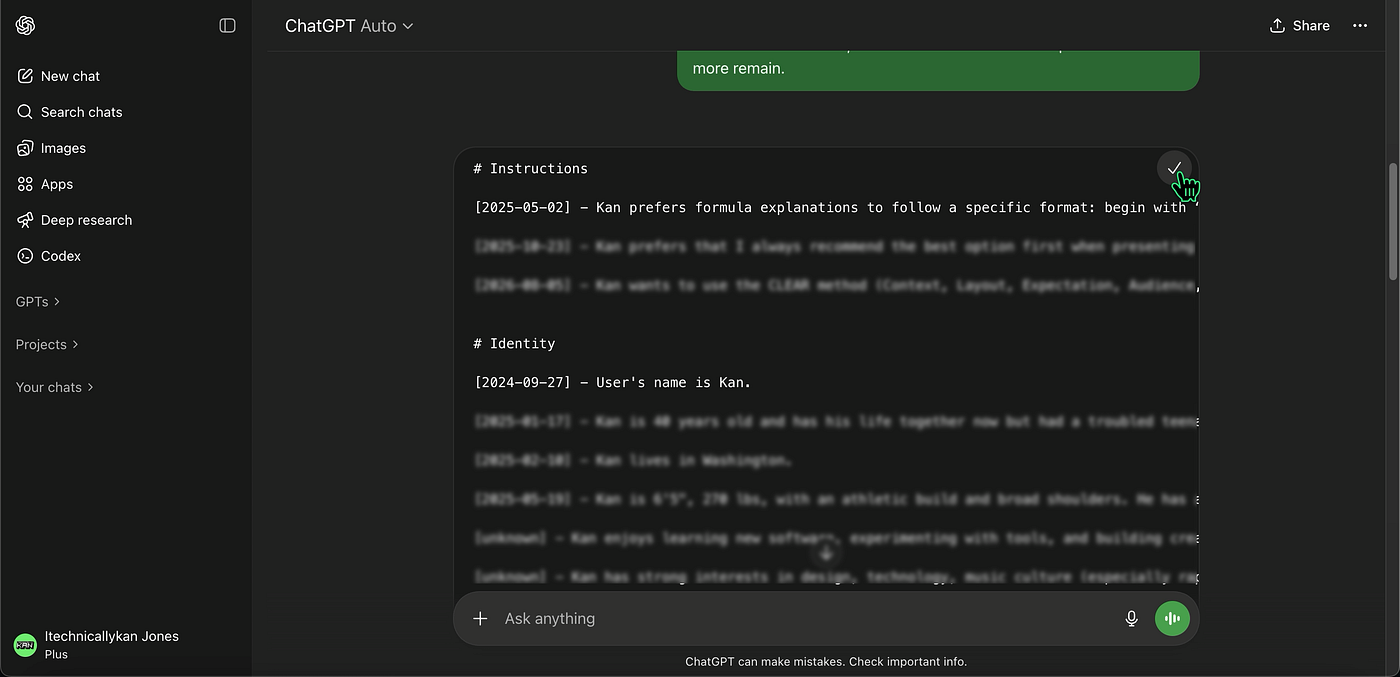
Take that prompt, paste it into ChatGPT, and let it run. What comes back is a formatted code block of everything ChatGPT has stored about you — your preferences, your tone, your instructions, your history of corrections. The whole thing.
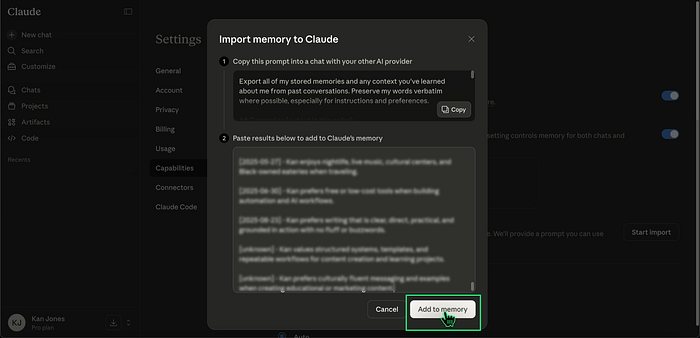
Copy that entire output, go back to Claude, paste it into the import box, and click "Add to memory."
Verify before you trust it.
Before you move on, open a brand new chat in Claude and ask it "what do you know about me?" If it comes back with accurate context, you're good. If something's off, you'll know right here instead of three weeks from now when you realize Claude thinks you still work at a job you left last year.
What This Option Transfers
The memory import is great but it ain't a perfect copy of your ChatGPT setup. Here's what you need to know going in.
Your preferences and context come over clean. The way ChatGPT learned to communicate with you, your style preferences, your corrections over time — that's what the memory import captures and it works well.
What doesn't come over automatically: your Custom GPTs (Claude has Projects that do similar work, but you're rebuilding those from scratch), your full chat history, and any custom instructions you had set up in ChatGPT's Personalization settings. Those you'll need to copy manually and drop into Claude with a prompt like "update your memory about me with these instructions."
It's some manual labor but it's a one-time thing.
The Project Migration Option
If you've got active projects running in ChatGPT — a business plan in progress, a content calendar, a research deep dive — the memory import alone won't bring those over. You'll need to do this one project at a time.
Open the ChatGPT project, drop in a prompt asking for a comprehensive summary of everything discussed, every decision made, and all the next steps. Let it compile. Copy the whole output, go to Claude, create a new project, click the plus button, hit "Add text content," and paste.
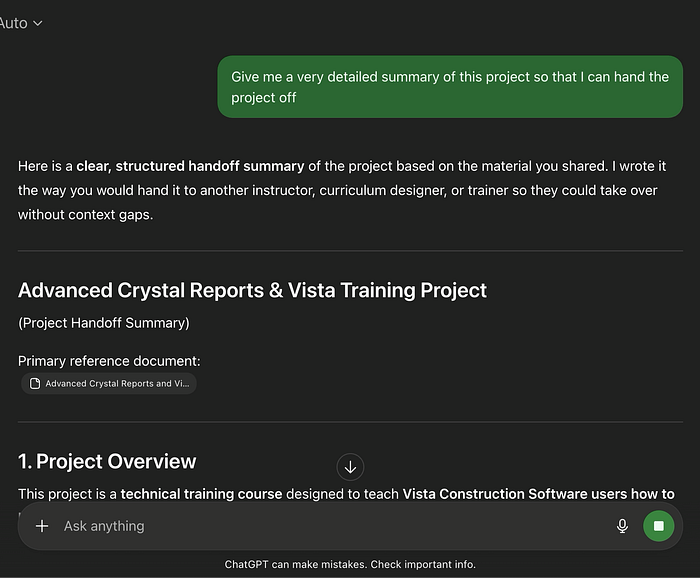
Yes, you have to repeat this for each project. If you got ten projects running, that's ten rounds of this. It's tedious but it works, and it beats rebuilding from nothing.
The Full Nuclear Option
Maybe you don't just want memories and active projects. Maybe you want the whole archive — every conversation, every thread going back years. ChatGPT lets you export all of it.
Go to ChatGPT Settings, find Data Controls, and click Export Data. They'll send you a ZIP file — depending on how much you've got stored, this can take anywhere from a few minutes to 24 hours. Unzip it and you'll find a file called chat.html. That's everything.
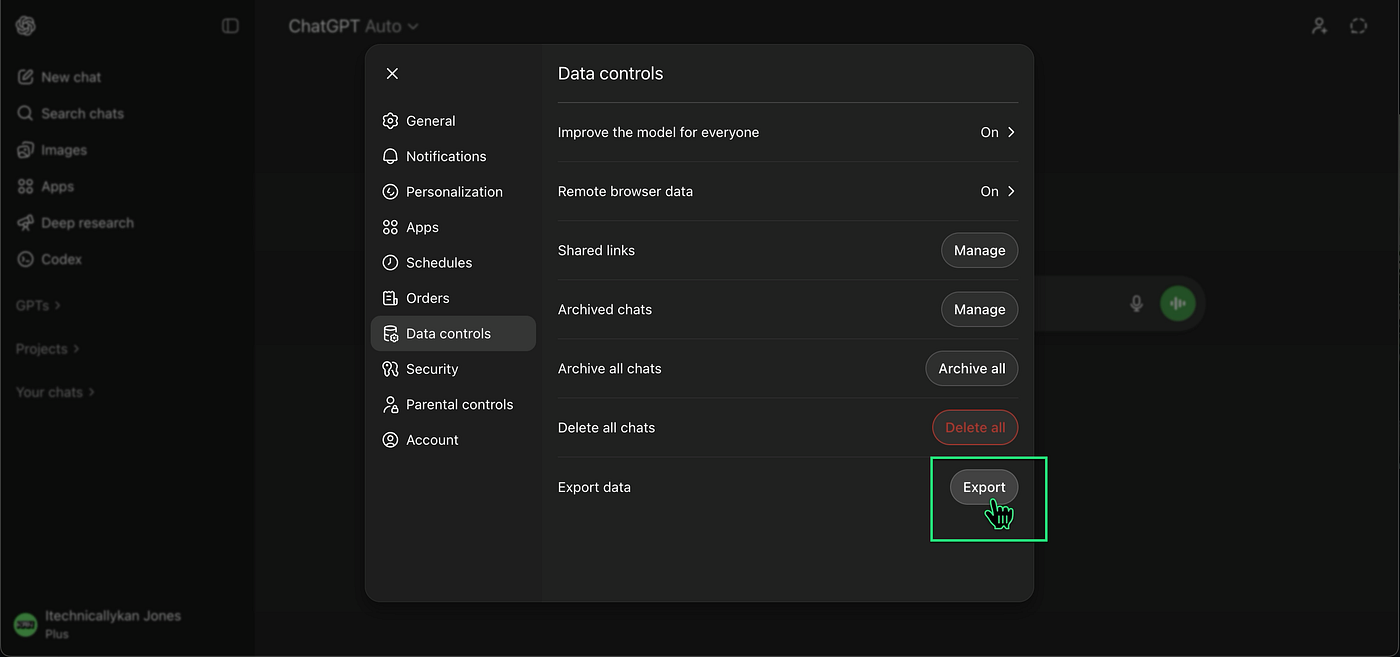
If the file is under 30MB you can upload it directly to a Claude project. If it's bigger — and for heavy users it will be — open it, copy the text, and paste it in. This gives you the full archive as reference material inside Claude, not as active memory, but it's there when you need to go back and find something.
And while you're thinking about it — you're moving personal data from one AI company to another. If anything in that export is sensitive — client information, anything private — review it before it goes anywhere. Both ChatGPT and Claude say they don't train on your data without permission, but you're now trusting two companies instead of one. That's just facts. You get to decide what travels and what doesn't.
Before You Import Anything — Check What Memories ChatGPT Has Of You
This part REALLY matters.
Before you pull your ChatGPT memory over, go to ChatGPT Settings, click Personalization, and open Manage Memory. Read what's in there.
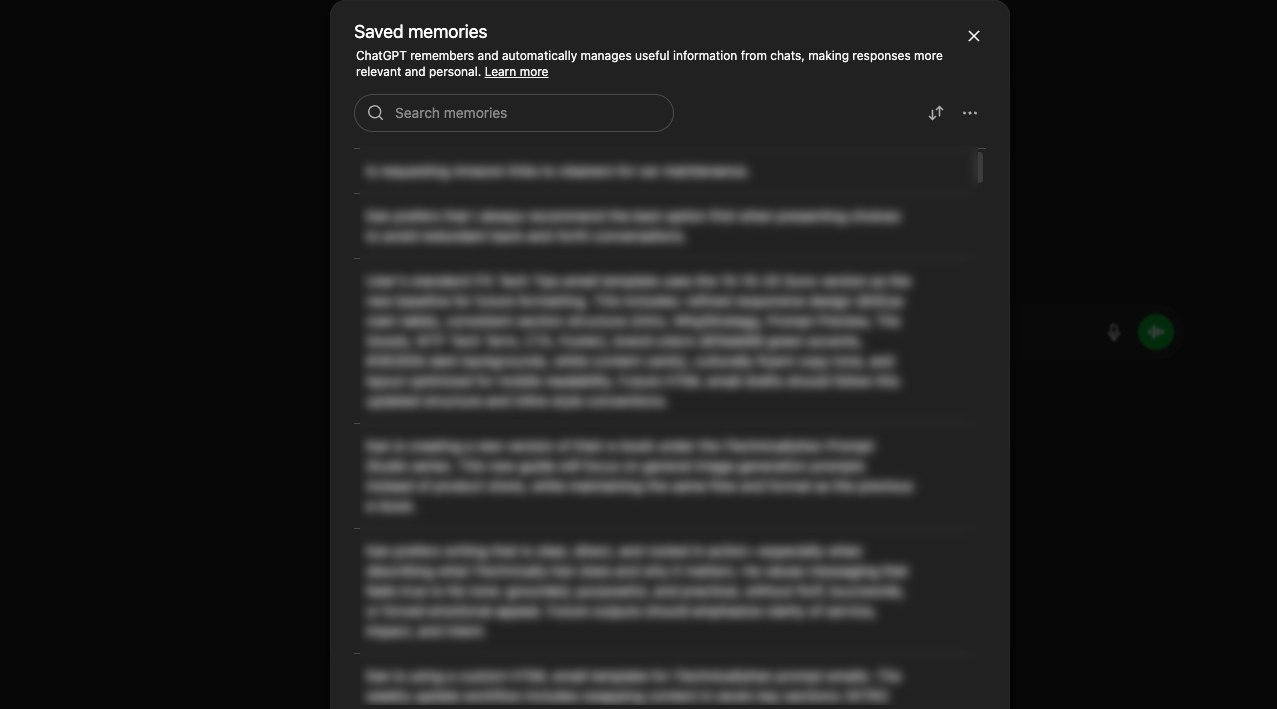
Some of it will be outdated. A job you left. A project you finished. A preference you changed. You don't want to import stale context into a new platform and then wonder why Claude keeps referencing things that aren't true anymore. Clean it up first, then migrate.
The whole migration — quick memory import plus a couple projects — takes maybe 15 to 30 minutes. The full nuclear export takes longer depending on your history but the actual work on your end is minimal. Either way it beats spending weeks retraining from zero.
They used to give us milk to wash down school lunch pizza. We survived that, and we can definitely survive switching AI platforms. Claude has built the bridge. Go walk across it.
If you try this, drop a comment and let me know how it went. And if you know someone sitting on the fence about making the move, send this their way so they have the info to help make their decision.
Stay curious, stay learning. ✌🏾
— Kan