
If you run workshops, training sessions, or any event where you collect open-ended feedback, you already know the problem. Responses come in, all free-form text, and someone has to read every single one, identify themes, and summarize it for use in analytics or reporting. That's like two hours of work that should take two minutes.
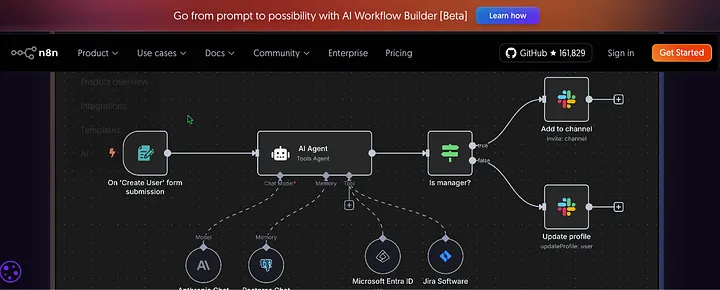
This tutorial walks you through building an n8n workflow that does exactly that. A Google Form submission triggers the workflow, Claude reads the unstructured feedback, extracts themes, sentiment, action items, and a confidence rating then writes a clean row into your Google Sheets dashboard automatically.
By the end you'll have a working four-piece automation and a clear framework for knowing when Claude is worth paying for versus when a free n8n node does the same job.
What You'll Need
- n8n — self-hosted or cloud: n8n.io
- Anthropic account — to get a Claude API key: console.anthropic.com
- Google account — for Google Forms, Google Sheets, and Google Apps Script
- ngrok (only if running n8n locally) — covered in Part 2
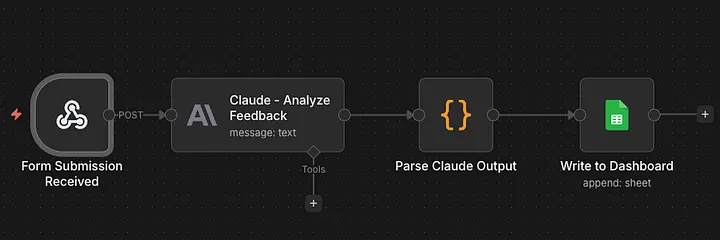
Understanding the Four-Piece Architecture
Before placing a single node, here's what this workflow does and why each piece exists.
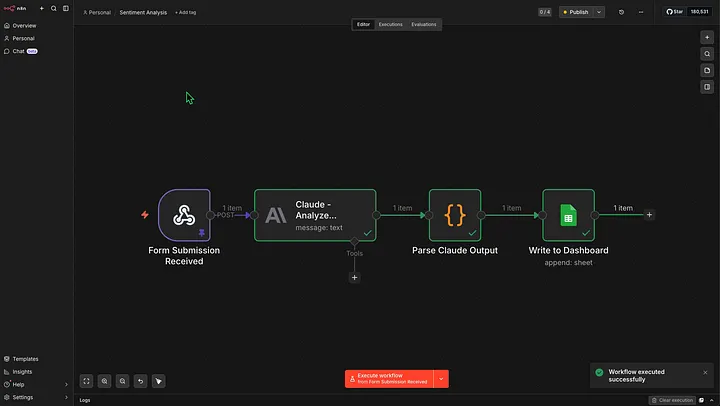
- Form Submission Received — Webhook: wakes the workflow the moment a form is submitted
- Claude Analyze Feedback — AI Processor: reads unstructured text, returns structured analysis
- Parse Claude Output — Parser: converts Claude's plain text into JSON the spreadsheet can use
- Write to Dashboard — Output: appends a new row to your Google Sheet
Part 1: Prepare Your Google Form and Google Sheet
This tutorial covers the automation. The Google Form and Google Sheet need to exist before you build in n8n.
Your form should collect a Name field (this becomes the Respondent column) plus your open-ended feedback questions. The workflow used in this tutorial has five questions covering session value, areas to improve, application plans, additional support needed, and general comments.
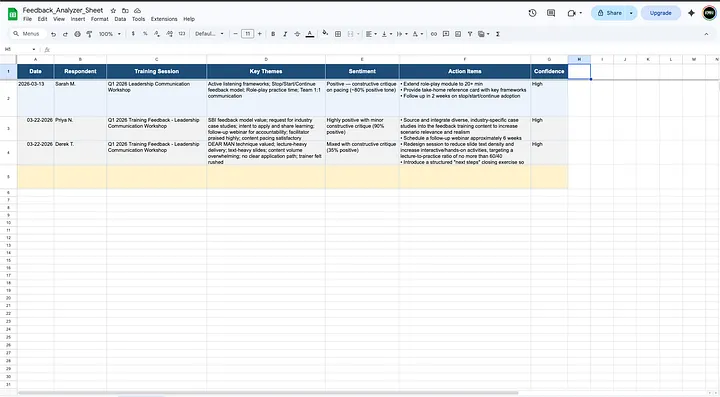
Create a Google Sheet with a tab named exactly Dashboard. Add these column headers in Row 1: Date | Respondent | Training Session | Key Themes | Sentiment | Action Items | Confidence

Part 2: Set Up ngrok (Local n8n Users Only)
☁️ Cloud n8n users: skip this entire section.
If you're running n8n on your local machine, your webhook URL begins with localhost — which Google's servers cannot reach from the outside. ngrok solves this by creating a secure public tunnel to your local instance.
Full setup guide: ngrok Getting Started — Official Docs
Once ngrok is running, it gives you a forwarding URL like https://abc123.ngrok-free.app. Keep this open — you'll use it in the next step.
Part 3: Add the Webhook Trigger Node
This is node one — the entry point of the workflow. When someone submits the Google Form, an Apps Script fires and sends a POST request to this webhook URL, waking up the entire workflow instantly.
- Click the + icon to add a new node
- Search for Webhook and select it
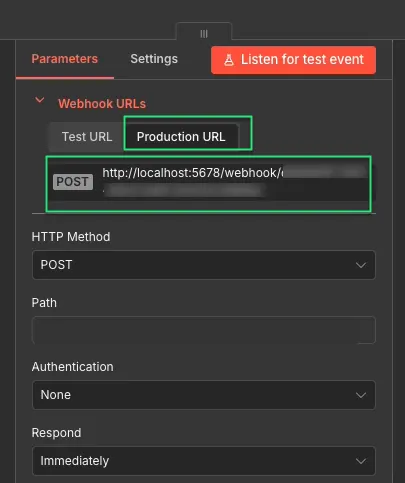
- Set HTTP Method to POST
- Click the Production tab and copy the full URL
Part 4: Connect the Google Form via Apps Script
In your Google Form, click the ellipse (3-dots) in the top menu, then click Apps Script. Delete any existing code and paste the following:
function onFormSubmit(e) {
  const webhookUrl = "YOUR_N8N_URL_WEBHOOK_HERE";
  const formName = e.source.getTitle();
  const responses = e.response.getItemResponses();
  const answers = {};

  responses.forEach((item, index) => {
    answers[`q${index + 1}`] = item.getResponse();
    answers[`q${index + 1}_label`] = item.getItem().getTitle();
  });

  const payload = {
    formName: formName,
    submittedAt: new Date().toISOString(),
    respondent: answers,
    body: responses.map(r => `${r.getItem().getTitle()}\n${r.getResponse()}`).join("\n\n")
  };

  UrlFetchApp.fetch(webhookUrl, {
    method: "post",
    contentType: "application/json",
    payload: JSON.stringify(payload),
    muteHttpExceptions: true
  });
}
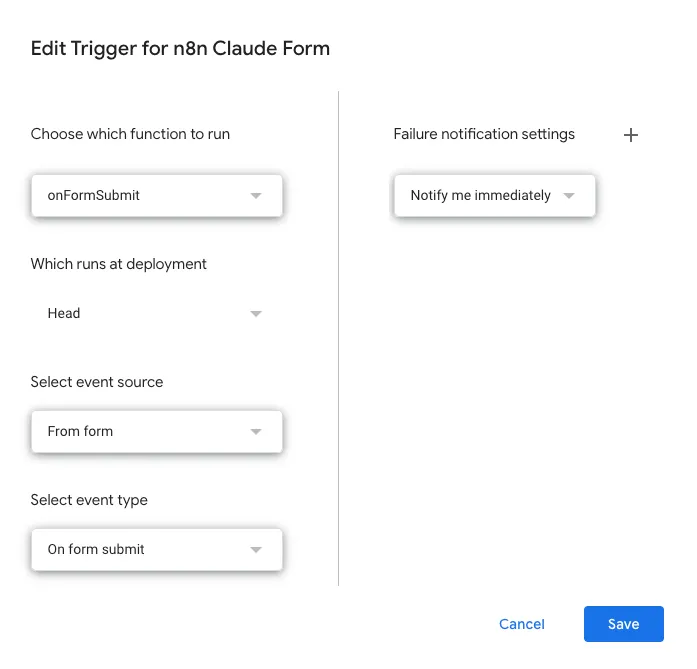
Replace YOUR_N8N_URL_WEBHOOK_HERE with the production URL from your Webhook node. Then set the trigger: clock icon → + Add Trigger → function onFormSubmit → From form → On form submit. Click Save and allow permissions when prompted.
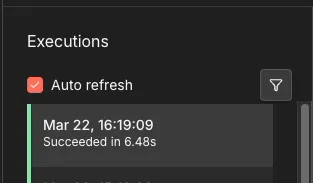
Confirm it works by submitting a test response and checking the n8n Execution Log for a green checkmark.
Part 5: Get Your Claude API Key
- Go to console.anthropic.com
- Click API Keys → Create Key, give it a name, and copy it immediately
- Go to Billing and add a minimum of $5 in credits
⚠️ Important: The Claude API requires a positive credit balance to function. A $0 balance will cause every request to fail. Never hardcode your API key directly into a node configuration or script.
Part 6: Add the Anthropic Node (AI Processor)
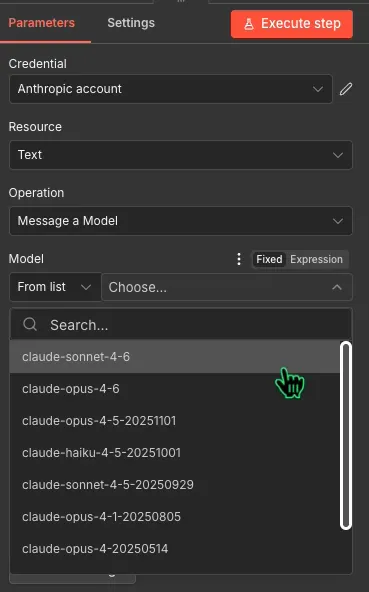
This is node two. Add a new node after the Webhook, search for Anthropic, select the native node, set Operation to Message a Model, connect your credentials, and set the model to claude-sonnet-4-6.
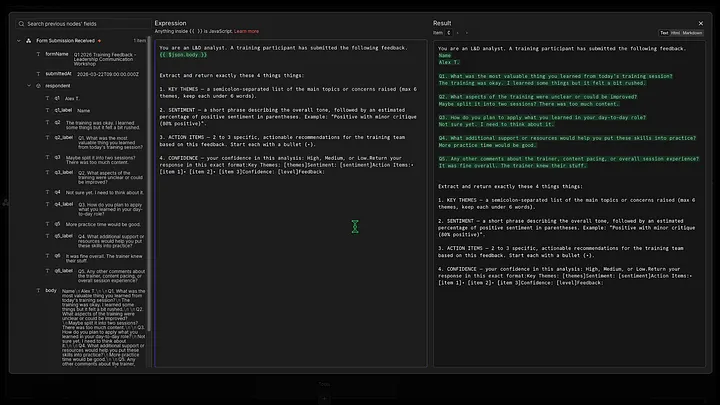
Paste the following into the Message field:
You are an L&D analyst. A training participant has submitted the following feedback.
{{ $json.body.body }}

Extract and return exactly these 4 things:
1. KEY THEMES — a semicolon-separated list of the main topics or concerns raised (max 6 themes, keep each under 6 words).
2. SENTIMENT — a short phrase describing the overall tone, followed by an estimated percentage of positive sentiment in parentheses. Example: "Positive with minor critique (80% positive)".
3. ACTION ITEMS — 2 to 3 specific, actionable recommendations for the training team based on this feedback. Start each with a bullet (•).
4. CONFIDENCE — your confidence in this analysis: High, Medium, or Low.

Return your response in this exact format:
Key Themes: [themes]
Sentiment: [sentiment]
Action Items:
• [item 1]
• [item 2]
• [item 3]
Confidence: [level]
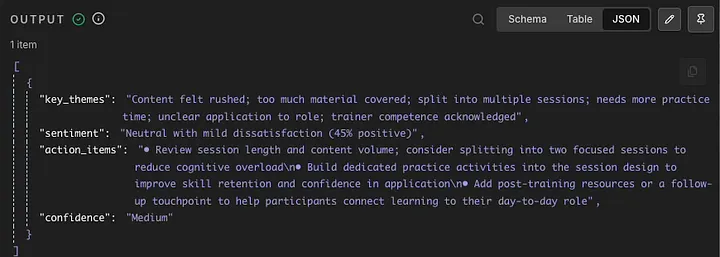
Claude returns plain text here, not JSON. That's intentional — the Code node in the next step handles the conversion, giving more control over how each field gets extracted.
Part 7: Add the Code Node (Parser)
Add a new Code node after the Anthropic node. Set the language to JavaScript and paste the following:
// 1. Get the raw text string from the Anthropic node
const rawText = $node["Claude - Analyze Feedback"].json.content[0].text;

// 2. Helper function to extract text between labels
const extract = (label, nextLabel) => {
  const regex = new RegExp(`${label}:\\s*([\\s\\S]*?)(?=\\n${nextLabel}:|$)`, 'i');
  const match = rawText.match(regex);
  return match ? match[1].trim() : "Not found";
};

// 3. Parse each section
const keyThemes   = extract("Key Themes", "Sentiment");
const sentiment   = extract("Sentiment", "Action Items");
const actionItems = extract("Action Items", "Confidence");
const confidence  = extract("Confidence", "Feedback");

return {
  key_themes:   keyThemes,
  sentiment:    sentiment,
  action_items: actionItems,
  confidence:   confidence
};
The script reads Claude's raw text, finds the start of each labeled section, extracts everything up to the next label, and returns four clean fields. If you ever need to modify it for a different prompt structure, ask any AI: "Write a JavaScript n8n code node that extracts labeled sections from Claude's text output using regex and returns them as JSON."
Part 8: Add the Google Sheets Node (Output)
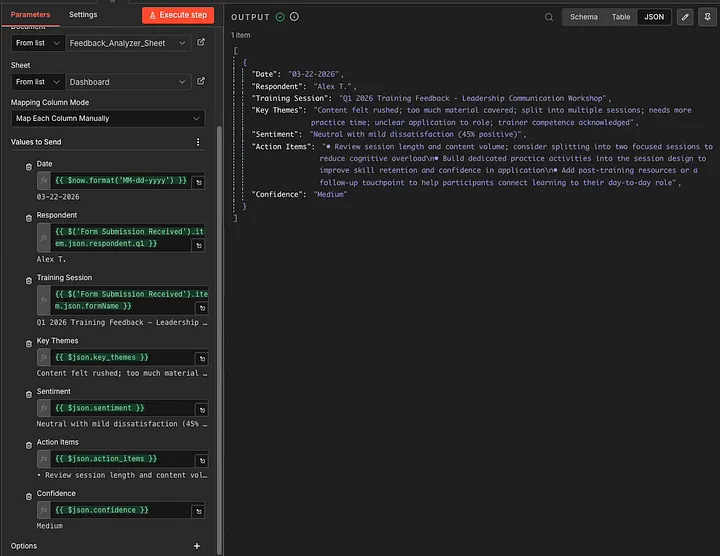
Add a new Google Sheets node after the Code node. Set Operation to Append Row, authenticate with your Google account, select your spreadsheet and the Dashboard tab, and set Mapping Mode to Define Below.
Field Mappings:
- Date =
{{ $now.format('MM-dd-yyyy') }} - Respondent =
{{ $('Form Submission Received').item.json.body.respondent.q1 }} - Training Session =
{{ $('Form Submission Received').item.json.body.formName }} - Key Themes =
{{ $json.key_themes }} - Sentiment =
{{ $json.sentiment }} - Action Items =
{{ $json.action_items }} - Confidence =
{{ $json.confidence }}
Part 9: Run the Full Workflow
- Make sure your workflow is set to Active (toggle in the top right of the n8n canvas)
- Submit a test response to your Google Form with realistic open-ended feedback
- Watch the n8n Execution Log — all four nodes should complete with green checkmarks
- Open your Google Sheet — a new row should appear with all seven columns populated
Part 10: When to Use Claude vs. Free n8n Tools
Claude costs money per request — fractions of a cent typically, but it adds up at volume. Here's the decision framework.
Use Claude when: the input is unstructured text that doesn't follow a predictable pattern. Open-ended survey responses, email summaries, customer feedback, support tickets — anything where the content varies and requires interpretation. This workflow is a perfect example. Every respondent writes differently. There's no IF node rule you could write to reliably extract themes and sentiment from free-form text.
Don't use Claude when: the task can be expressed as a simple rule — routing based on a dropdown (use an IF node), formatting a date (use n8n's built-in expressions), checking if a field is empty (use an IF node), or extracting a specific field from a structured form (use an expression like {{ $json.body.respondent.q1 }}).
The rule of thumb: if you can write it as a rule, don't pay AI to guess it.
Troubleshooting
Webhook not receiving data: Confirm the Apps Script trigger is saved and set to onFormSubmit. If running locally, confirm ngrok is still running. Confirm the workflow is Active — test mode webhooks use a different URL.
Claude node returning an error: Confirm your Anthropic account has a positive credit balance at console.anthropic.com/settings/billing. Verify the API key in the n8n credential is saved correctly.
Code node returning "Not found": Open the Anthropic node's output panel and inspect the raw text Claude returned. Check that Claude's labels match exactly what the regex expects.
Google Sheets not appending a row: Confirm the sheet tab is named exactly Dashboard (case-sensitive). Re-authorize the Google credential if the OAuth token has expired. Check that column names match headers exactly.
👉 n8n Google Sheets node documentation
What You Built
A four-node n8n workflow that receives a Google Form submission in real time via webhook, sends the unstructured feedback to Claude with a prompt that produces consistent parseable output, parses Claude's plain text response into clean JSON fields using a code node, and appends a structured row to a Google Sheets dashboard automatically.
Setup time: 10–15 minutes. Time saved per feedback cycle: multiple hours.
That's it for this tutorial. If you are into watching tutorial videos I just dropped one that goes with this.
Stay curious, stay learning. ✌🏾
— Kan