
Most automation tutorials either assume you're already technical or they oversimplify to the point of being useless. This tutorial is different. We're going to build something real that you can use — a workflow that captures Google Form responses and automatically sends them to Slack. No prior experience required. No coding necessary (unless you want to).
By the end of this 15-minute tutorial, you'll understand how automation works, not just how to copy someone else's template.
What We're Building
The scenario: You have a Google Form collecting feedback, signups, requests, whatever. Right now, you probably check it manually, copy responses, and paste them into Slack to notify your team. Maybe you also log them in a spreadsheet.
What we're automating: The moment someone submits your form, n8n will automatically send the response to your Slack channel and optionally log it in Google Sheets. No checking. No copying. No pasting. It just happens.
Why this is useful: This exact pattern of "when X happens, do Y and Z automatically" is the foundation of basically every workflow automation. Master this, and you can build way more complex stuff.
What You'll Need
Before we start, grab these:
- An n8n instance — Cloud option (easiest): Sign up at n8n.io with a free tier. Self-hosted option: requires Docker and server management — I'd recommend starting with cloud and migrating later if needed.
- A Google Form (or create one for testing)
- A Slack workspace where you can add integrations
Don't worry about having the "right" form or the "perfect" use case. We're learning the mechanics here. You can apply this to your real work later.
A note on timing: This tutorial is designed to take 15 minutes once you're set up, but if this is your first time connecting Google Sheets or Slack to an automation tool, credential setup might take an additional 10–15 minutes. That's completely normal. Once your credentials are saved, you won't need to do this again for future workflows.
Step 1: Set Up Your Google Form (3 minutes)
If you haven't already, let's create your test form from scratch:
- Go to forms.google.com
- Click the "+" to create a new form
- Give it a name: "Automation Test Form"
- Add these fields: Name (short answer), Email (short answer), and "What's your biggest automation challenge?" (paragraph)
- Click the "Responses" tab, then the green Google Sheets icon to link the form to a new spreadsheet
- Select "create a new spreadsheet" and click "create"
- Click "Share" in the top right and grab the link — you'll need this for testing
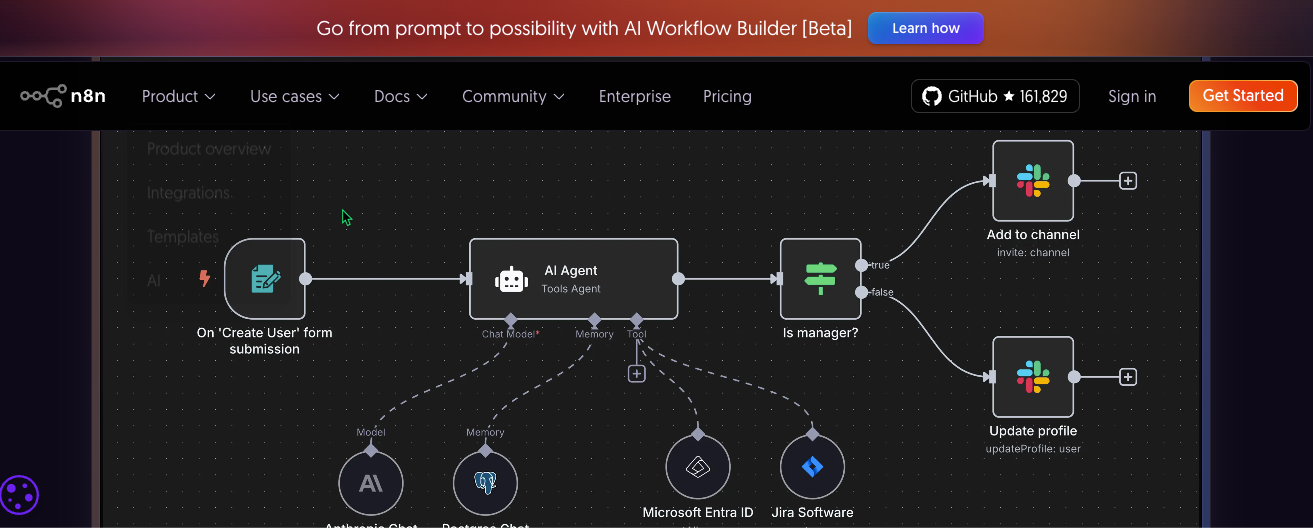
Detail: The Sheet's tab name will be used in n8n. If you haven't changed it, it's likely "Form Responses 1."
Step 2: Set Up Your Slack App Scopes (3 minutes)
To avoid the "Problem activating workflow" error, your Slack App needs specific permissions and must be installed properly.
- Visit the Slack API dashboard and create a new App (select "From scratch" when prompted)
- In the left sidebar, go to OAuth & Permissions
- Scroll down to Scopes and add these Bot Token Scopes:
channels:read,groups:read, andchat:write - Scroll back to the top and click "Install App to Workspace" to activate the new scopes
Step 3: Create Your n8n Workflow & Trigger (4 minutes)
Now let's build the actual automation:
- Log into n8n at n8n.io (or sign up if you haven't)
- Click "New Workflow" in the top right
- You'll see a blank canvas with a single blank node
Understanding the canvas: This is where you build. Each box (called a "node") does one thing. You connect nodes together to create a workflow. Data flows from left to right.
Add your trigger:
- Click the "+" button on the canvas
- In the search box, type "Google Sheets"
- Select "Google Sheets Trigger"
Note: We're using the Google Sheets Trigger instead of the Google Forms Trigger because the direct Forms trigger is deprecated.
Connect your Google account by clicking "Connect Account" → "Create New Credential." Follow the OAuth2 authorization flow. Once authorized, you're back in n8n.
Configure the trigger:
- Trigger On: Set to "Row Added"
- Document: Select your "Automation Test Form (Responses)" spreadsheet
- Sheet: Select "Form Responses 1" (or whatever your tab is named)
- Leave everything else as default
Keep this browser tab open. We need to test the trigger before moving forward.
Step 3.5: Test Your Trigger (2 minutes)
Before building the rest, make sure n8n is seeing your form submissions:
- Open your Google Form link in a new browser tab
- Fill it out with test data: Name "Test User," Email "test@example.com," Answer "I want to automate everything"
- Click "Submit"
- Go back to n8n — look for data appearing in the output section below the trigger node
- Make sure you clicked "Fetch Test Event" if data doesn't appear automatically
That data you're seeing is the actual form submission n8n captured. You'll see field names and the values you entered. This data is now available for the next steps.
If you don't see data: Try submitting the form again, check that you selected the correct form in the dropdown, and verify your Google account connected properly. Once you see the data, you're golden — this is the hardest part.
Step 4: Send to Slack (5 minutes)
Now let's do something useful with that form data.
Add the Slack node:
- Hover over the right side of your Google Sheets Trigger node
- Click the "+" button that appears
- Search for "Slack" and select "Send a message"
Connect your Slack account: Click "Connect Account" → "Create New Credential." You'll need your Bot User OAuth Token (starting with xoxb-) from your Slack App's OAuth & Permissions page.
Configure the message:
- Resource: Message
- Operation: Post
- Channel: Select your target channel (your personal DM works fine for testing)
Message Text — Mapping form data. Click in the message text box and use this template:
🆕 New form submission!

*Name:* {{$json["Name"]}}
*Email:* {{$json["Email"]}}
*Challenge:* {{$json["What's your biggest automation challenge?"]}}
Important: The field names inside the {{}} need to match what Google Sheets calls them. Look at the output from your trigger node to see the exact field names — they might be the full question text.
Then click "Execute workflow" and check your Slack channel — you should see your test message appear.
Step 6: Invite the Bot and Activate (2 minutes)
The final activation sometimes fails with "not_in_channel." Fix this by inviting the bot directly in Slack:
- Open your Slack channel
- Type
/invite @n8n Form Messagesand hit Enter - Confirm the bot has joined
- Go back to n8n and save your workflow (Ctrl+S or Cmd+S)
- Find the "Inactive" toggle in the top right and click it to switch to Active
Your workflow is now live.
Step 7: Test Live (2 minutes)
- Open your Google Form in a new tab
- Submit a completely new response with different test data
- Within seconds, check your Slack channel — a new message should appear
- Check your Google Sheet — a new row should be added
If it works, you're done. You just built a real automation that's running right now.
What You Just Learned (And Why It Matters)
Triggers vs. Actions: Every workflow starts with a trigger (the "when this happens" part) and has one or more actions (the "do this" part). The trigger was your form submission; the actions were sending to Slack and logging to Sheets.
Data flow: Data from the trigger becomes available to all subsequent nodes. You map that data using {{$json.field_name}} expressions. The same data can go to multiple places.
Testing before going live: Always test individual steps before activating. Use test data so you're not polluting real systems.
This same pattern scales infinitely. Replace "Google Forms" with "new customer order" and "Slack/Sheets" with "update inventory, send email, create invoice, notify warehouse" — same mechanics, different nodes.
Troubleshooting Common Issues
"My trigger isn't capturing form submissions" — Verify the workflow is "Active," check you selected the correct form, try disconnecting and reconnecting your Google account, make sure the form is receiving submissions.
"Slack messages aren't sending" — Confirm you have permission to post in that channel, check for typos in your {{$json.field}} expressions, try sending to your personal DM first to isolate permission issues. Review the execution log in the left sidebar.
"Field names don't match" — Click on your trigger node and examine the output data structure. Names inside {{}} must match exactly — sometimes Google uses the full question text as the field name.
"Everything worked in test mode but not when live" — Check the executions panel for error messages, verify the trigger is set to "Active," and try reconnecting credentials if they've expired.
Next Steps: Where to Go From Here
Immediate modifications to try:
- Add conditional logic: only send to Slack if a field contains specific text
- Format your Slack messages fancier with blocks and emojis
- Add a Gmail node to send confirmation emails to form submitters
- Create different paths: send to different Slack channels based on responses
Explore the template library: n8n has 7,000+ pre-built workflows at n8n.io. Find something close to what you need, copy it, and reverse-engineer how it works.
Build something real: What repetitive task drives you crazy? What data do you copy-paste between systems? Pick one real workflow and build it. You'll learn more from one practical automation than from ten tutorials.
Here's the truth: reading tutorials teaches you syntax. Building real workflows teaches you how to think in systems. Start noticing when you do the same thing twice. When you copy data from one place to another. When you send the same update to multiple people. Those are all automation opportunities.
n8n gives you the tool. The workflows you build? Those come from understanding your own processes well enough to break them into steps a computer can handle. You're not trying to replace yourself — you're trying to free yourself from the boring, repetitive stuff so you can focus on work that requires human judgment.
Now go build something useful.